

docReader FAQ
Yes in documents in these formats: Pdf, epub.
| Error message | Reason/Solution |
|---|---|
| Access denied. | The service is used on a page that is not authorized in your account. Contact your sales representative for additional domains. |
| Invalid customer ID given. | Check that you're using the accurate customer ID in the call. |
| No language found. | Check that you're using the accurate language code in the lang parameter. The available languages in your account can be found in your account details. |
| No voice found. | Check that you're using the accurate voice code in the voice parameter. |
Read more about accessible pdf’s, https://helpx.adobe.com/acrobat/using/creating-accessible-pdfs.html
Documents should be properly tagged. If not, docReader will be unable to show the correct structure, heading levels, bullet point lists, and paragraphs in text mode, and if it is not possible to determine which images are part of the layout and which are part of the content, layout images may appear in text mode. Auto-tagging functions are not guaranteed to be successful and the customer must not allow this feature to encourage the production of untagged PDFs.
Read more about accessible pdf’s, https://helpx.adobe.com/acrobat/using/creating-accessible-pdfs.html
docReader shows whether the document was properly structured/tagged by the author. It is shown in the top toolbar unless the reading language selector is displayed (when there are multiple licensed languages) in which case it is shown in the footer.
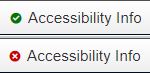
For document formats (e.g. EPUB) where the indicator is not relevant the indicator will not be displayed.
If docReader should be able to read the tables well the table need to be tagged and the Support at ReadSpeaker need to enable the table reading functionality.
Yes, you can implement ReadSpeaker docReader on a mobile website by following exactly the same steps as for a website. Please make sure that your mobile website domain has been authorized with the ReadSpeaker sales representative you are in contact with.
The audio file of the current page can be downloaded.
Yes, to enable this we have a few options. The three solutions are:
- You open up for our IP range so our servers are allowed to reach the documents without password.
- If you use cookies, it is possible to setup a pseudo domain that points to our server, a DNS alias pointing to app.readspeaker.com. Then the cookies will be forwarded to us and we will forward the cookie when we retrieve the document. NOTE: This is not supported over HTTPS connections, it will generate an error since the domain name will not match the one in specified in the certificate.
- If you use HTTP authentication and the same password and username is always used, we can store them in our customer database and ReadSpeaker can send them along with the document request.
If you want to use one of the methods above, please contact moc.rekaepsdaer@troppus for more details.
If none of the above solutions works for you, please contact moc.rekaepsdaer@troppus so we can investigate other alternatives.
Langauge configurations
The language codes for more available languages are found in the the page Language configurations
Change the default image in the Autoadd solution
Changing the default image for docReader can be done with the configuration below. Please remember to modify [IMG_URL] (don't include the brackets) to the URL for the image.
<script type="text/javascript">
<!--
window.rsDocReaderConf = {img_href: '[IMG_URL]'};
//-->
</script>
Language per document
Customers can set an hreflang attribute on their document links in order to make DocReader use that hreflang for opening the document. Example:
<a href="Mylink.pdf" hreflang="en_uk">This is a link to a document that should be opened in DocReader with British English.</a>In order for AutoAdd to use the hreflang attribute, you must set window.rsDocReaderConf.useHrefLang to true. You can do this through an inline script:
<script type="text/javascript">
<!--
window.rsDocReaderConf = {useHrefLang: true};
//-->
</script>
For more information about available configurations, please contact support at ReadSpeaker.
No, there is no tags for math in document tagging.
It is possible if the tags contain information about the language.
Contact moc.rekaepsdaer@troppus for more details.
Read about the tools and features in the docReader help page, docReader help page
All tools and features are not turned on by default. Please contact support if you are missing or want remove a tool or feature.
We can create customized dictionaries that take into account words that are specific to your industry jargon that are not well read.
For example, this sometimes happens with acronyms and abbreviations. We can then work on your customized dictionary to have your words pronounced correctly.
Check that the correct lang and voice parameters are used, and that the intended voice is available in you account.
If you have a contract for more than one language, you can select language by changing the lang-parameter:
Example:
Read in French
&lang=fr_fror read American English
&lang=en_usFor more information about available languages, please contact your sales representative or support contact at ReadSpeaker.
If you have a contract for more than one voice for a language, you can select voice by adding the voice-parameter:
Example: use the American English male voice Paul:
&voice=PaulNote: You must also set the correct &lang parameter to define the language as described above
For more information about available voices, please contact your sales representative or support contact at ReadSpeaker.
docReader stores one cookie:
- dcrsettings - Lives for 30 days. Stores information about:
- Whether or not JavaScript mode was used last
- Whether or not the user had chosen text mode
- Interface language
- Reading speed
- Highlighting method
- User settings (those shown in the settings panel), such as:
- Text and background coloring for highlighting
- Font size in text mode
- Font face in text mode
- Text and background coloring for highlighting
- Whether or not JavaScript mode was used last
URL encoding converts characters into a format that can be safely transmitted over the internet. URLs can only be sent over the Internet using the ASCII character-set. Since URLs often contains characters outside the ASCII set, the URL has to be converted. URL encoding converts the URL into a valid ASCII-format.
URL encoding replaces unsafe ASCII characters with "%" followed by two hexadecimal digits corresponding to the characters values in the ISO-8859-1 character-set. URLs cannot contain spaces. URL encoding normally replaces a space with a + sign.
When a URL points to some kind of web application, it is often necessary to transfer information to that application. A common way is to transfer such parameters via the query string, the part of the url after a "?". If the parameter that shall be transferred is a URL itself, and that URL also contains parameters, we get a collision. It would be impossible for the application receiving the URL to know what parameters belong to this application and what parameters belong to the URL itself. To handle this, certain characters in the transferred URL parameter need to be translated to something else so that no ambiguities apply. This is especially true for characters like &, % and ?. This translation is referred to as url encoding or url escaping.
If the URL-encoded url is not reachable as a variable in your CMS, you can use any of the methods below. The server side scripts (PHP, ASP or JSP) are preferred for accessibility purposes.
- Example in PHP:
<?php echo urlencode("https://".$_SERVER["SERVER_NAME"].$_SERVER["REQUEST_URI"]); ?>- Example in ASP:
<% Server.URLEncode("https://" & Request.ServerVariables("SERVER_NAME") & Request.ServerVariables("SCRIPT_NAME")) %>